IA & Agentes
Copilot Studio do zero [3] - Criando seu primeiro agente do zero: o DataDay
Copilot Studio from scratch [3] - Building your first agent from scratch: DataDay
![Copilot Studio do zero [3] - Criando seu primeiro agente do zero: o DataDay](/images/copilot-dataday-criando-capa.png)
Fala dataholics! Essa é a parte 3 da série Copilot Studio do zero, e hoje é dia de meter a mão na massa. Nos posts anteriores a gente desenhou o mapa do ecossistema e depois abriu o capô pra ver a anatomia de um agente (os 6 blocos). Chega de teoria: hoje a gente cria um agente do zero, sem escrever código.
E não vai ser um "oi, como posso ajudar" genérico. Vamos criar o DataDay, um agente que responde sobre o calendário da empresa: feriados, eventos de cultura, treinamentos e encontros, lendo tudo direto de uma planilha no SharePoint. É um caso real e útil pra qualquer time.
O que veremos nesse post:
O que vamos construir (o caso do DataDay)
Passo 1: criar o agente e escrever as Instructions
Passo 2: plugar o SharePoint como Knowledge
Passo 3: Tools e Work IQ (o que o print mostra por baixo)
Passo 4: testar o agente e ler o grounding
Uma pegadinha do Web Search
Bônus: um Trigger agendado pra deixar o agente proativo
Resumo
O passo a passo completo está no vídeo abaixo. Aviso: o vídeo é sem narração, só a gravação da tela mostrando cada clique. A explicação de verdade, o porquê de cada escolha, está aqui no post. Então segue lendo que eu conecto tudo.

O que vamos construir: o DataDay
Bom, toda empresa tem aquele calendário anual que ninguém lembra onde está. "Quando é a festa junina?", "esse feriado é facultativo?", "quando tem o próximo treinamento?". A resposta existe, mas está numa planilha perdida no SharePoint.
A ideia do DataDay é simples: você pergunta em linguagem natural e ele responde com base no calendário oficial, citando a fonte. Nada de chutar data. Se não está na planilha, ele diz que não sabe e manda procurar o time de Cultura.
Pra isso a gente vai usar quatro dos seis blocos que vimos no post anterior: Instructions (as regras), Knowledge (o SharePoint), Tools (pra buscar eventos e puxar contexto do usuário) e no fim um Trigger (pra ele agir sozinho). Simples assim, um agente útil não precisa dos seis blocos de uma vez.
Passo 1: criar o agente e escrever as Instructions
No Copilot Studio você clica em Create, dá um nome (DataDay), uma descrição curta e cai na tela de configuração. O primeiro bloco que importa é o Instructions, o famoso "system prompt" só que em português, sem código.
Aqui é onde você define o comportamento. No DataDay eu escrevi algo nessa linha:
Você é o DataDay, o assistente de agenda e cultura da empresa.
Responda dúvidas sobre o calendário oficial: feriados, eventos de
cultura, treinamentos e encontros.

Regras:
- Responda SOMENTE com base no Knowledge (calendário no SharePoint).
- Nunca invente datas, cidades ou nomes de eventos.
- Se não estiver no calendário, diga que não consta e oriente
  procurar a equipe de Cultura.
- Sempre traga a DATA e o MÊS do evento. Cite a fonte.
- Diferencie feriado nacional de evento interno e de facultativo.
- Responda em português do Brasil, de forma curta e direta.
Repare que metade das regras é sobre o que ele NÃO pode fazer. Esse "nunca invente, e se não souber diga que não sabe" é o que segura a confiança no agente. Sem isso, vira chatbot que fala bonito e erra feio.
Passo 2: plugar o SharePoint como Knowledge
Agora o coração do agente. No bloco Knowledge a gente aponta pro SharePoint onde vive a planilha Calendário Dataside 2026.xlsx. É isso que dá o grounding: em vez de o modelo responder com o conhecimento genérico dele, ele busca a resposta nos SEUS dados e cita a origem.
Na prática você cola a URL do site/documento do SharePoint e pronto, o agente já enxerga o calendário. E aqui vai um detalhe importante que muita gente erra: o Copilot não cria um índice próprio nem copia seus dados pra lugar nenhum. Ele reaproveita o índice nativo de busca do SharePoint / Microsoft 365 (o Microsoft Search, com o semantic index que o M365 já mantém). Ou seja: sem pipeline, sem re-indexar, sem vector database na mão. É RAG gerenciado em cima do que o SharePoint já indexa pra você.
Reginaldo, e ele respeita quem pode ver o quê?
Sim. O Copilot herda as permissões do SharePoint. Se o usuário não tem acesso ao arquivo, o agente não usa aquilo pra responder pra ele. Segurança e permissões vão render um post inteiro mais pra frente na série, mas já guarda que isso é nativo.
Passo 3: Tools e Work IQ (o que roda por baixo)
Só com Instructions e Knowledge o DataDay já responde. Mas eu adicionei um tempero a mais nas Tools: uma tool chamada ListEvents (via MCP) pra listar eventos de forma estruturada, e ativei o Work IQ, aquela camada de contexto do Microsoft 365 que vimos no post 2.
No print do teste, olha o painel da esquerda: aparecem Work IQ User, Work IQ Copilot e Work IQ Calendar (todos em Preview, inicializados via Model Context Protocol) e a tool ListEvents sendo acionada. É o agente montando o contexto: quem é você, qual seu calendário, e a lista de eventos, antes de escrever a resposta.
Passo 4: testar e ler o grounding
Com tudo plugado, bora no painel Test (canto superior direito, ele abre do lado enquanto você configura). Eu mandei um "Procure no sharepoint" e pedi os eventos de janeiro. Olha o resultado:
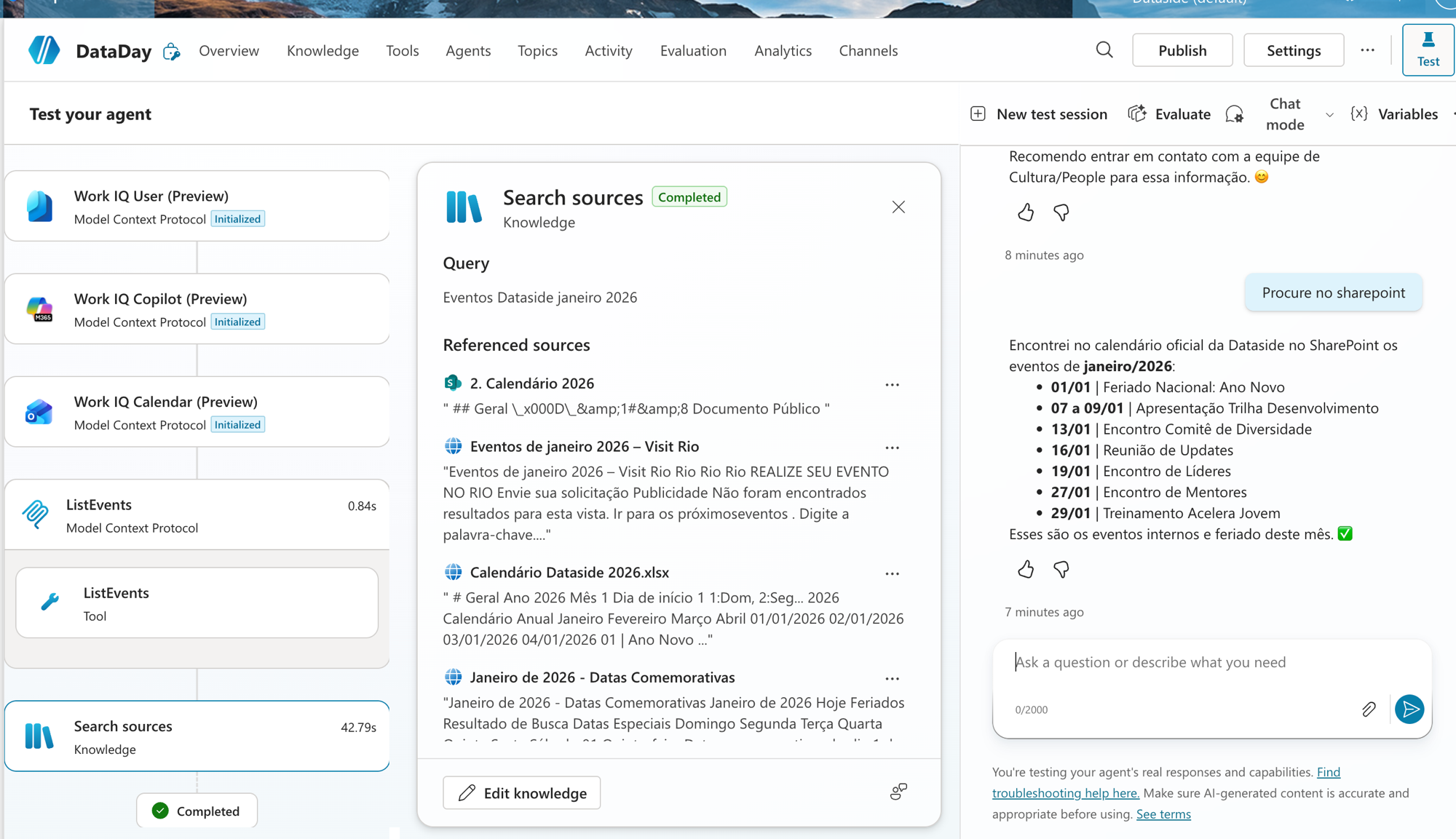
Duas coisas pra você reparar nesse print, porque é aqui que dá pra ver o que rolou por trás:
No meio, o card Search sources mostra a query que o agente montou ("Eventos Dataside janeiro 2026") e as Referenced sources que ele consultou, incluindo o Calendário Dataside 2026.xlsx do SharePoint. Ou seja: dá pra AUDITAR de onde veio cada resposta.
À direita, a resposta final: ele listou certinho 01/01 Ano Novo (feriado nacional), 07 a 09/01 Trilha de Desenvolvimento, 13/01 Comitê de Diversidade, e por aí vai, tudo com data e separando feriado de evento interno, exatamente como pedimos nas Instructions.
Esse card de fontes ajuda demais na hora de depurar. Quando o agente responder algo estranho, é a primeira coisa que você abre pra ver o que ele leu (e o que ele não leu).
Uma pegadinha: o Web Search se intrometendo
Repara de novo nas fontes do print: além do calendário do SharePoint, apareceram resultados de web tipo "Eventos de janeiro 2026 Visit Rio" e "Datas Comemorativas". Isso acontece porque o toggle de Web Search estava ligado no Knowledge, e o agente saiu buscando na internet também.
DETALHE IMPORTANTE: pra um agente que responde sobre o seu calendário, web aberta é ruído (e risco de trazer data errada). Por isso eu mandei o "Procure no sharepoint", pra empurrar ele pra fonte certa. A solução definitiva é desligar o Web Search ou reforçar nas Instructions pra priorizar o SharePoint. Fica a dica: quando a fonte tem que ser a interna, feche a porta da web.
Bônus: deixando o DataDay proativo com um Trigger
Até aqui o DataDay só fala quando alguém pergunta. Lembra dos Triggers lá do post 2? São eles que acordam o agente sozinho. No vídeo eu criei um Trigger do tipo agendado (schedule): em vez de esperar você abrir o chat, ele dispara num horário definido, tipo toda segunda de manhã, e pode te empurrar os eventos e feriados da semana no Teams ou por email.
E é aqui que fica bom: o calendário deixa de ser algo que você precisa LEMBRAR de consultar e vira algo que chega até você. Um Trigger agendado somado à listagem de eventos que a gente já montou vira um lembrete automático da agenda da empresa, sem ninguém mexer um dedo. Com poucos cliques, ele deixa de só esperar e passa a agir.
RESUMO
Um agente útil nasce com pouco: Instructions + Knowledge já resolvem muita coisa.
Instructions: escreva as regras em português, e gaste metade delas dizendo o que o agente NÃO pode (não inventar, dizer quando não sabe).
Knowledge com SharePoint é RAG gerenciado: cola a URL e ele usa o índice nativo do SharePoint (não cria índice próprio) e ainda respeita as permissões do arquivo.
Tools e Work IQ dão o tempero: contexto do usuário, do calendário e listagem estruturada de eventos.
Um Trigger agendado deixa o agente proativo: ele te avisa da agenda sozinho, sem você perguntar.
O card Search sources no Test mostra a query e as fontes usadas, use ele pra auditar e depurar.
Cuidado com o Web Search ligado quando a fonte tem que ser interna: desligue ou priorize o SharePoint nas Instructions.
Pronto, seu primeiro agente de pé, do Create até ele respondendo, sem uma linha de código. Sério, é bacana demais o que dá pra montar em poucos minutos.
Ele já responde. Mas será que responde BEM, sempre? No próximo post da série a gente coloca o DataDay à prova com o Evaluation do Copilot Studio, rodando um conjunto de perguntas de uma vez e vendo onde ele passa e onde ele falha. Spoiler: ele falha em uma.
Referências:
https://learn.microsoft.com/en-us/microsoft-copilot-studio/fundamentals-get-started
https://learn.microsoft.com/en-us/microsoft-copilot-studio/knowledge-add-sharepoint
https://learn.microsoft.com/en-us/microsoft-copilot-studio/use-work-iq
Fique bem e até a próxima.
#copilotstudio #microsoftai #sharepoint #workiq #agentes #ia #powerplatform #datainaction
Hey dataholics! This is part 3 of the Copilot Studio from scratch series, and today we get our hands dirty. In the previous posts we drew the map of the ecosystem and then popped the hood to look at the anatomy of an agent (the 6 blocks). Enough theory: today we build an agent from scratch, without writing any code.
And it won't be a generic "hi, how can I help you". We're going to build DataDay, an agent that answers questions about the company calendar: holidays, culture events, trainings and meetups, reading everything straight from a spreadsheet in SharePoint. It's a real, useful case for any team.
What we'll see in this post:
What we're going to build (the DataDay case)
Step 1: create the agent and write the Instructions
Step 2: plug SharePoint in as Knowledge
Step 3: Tools and Work IQ (what the screenshot shows underneath)
Step 4: test the agent and read the grounding
A Web Search gotcha
Bonus: a scheduled Trigger to make the agent proactive
Recap
The full step-by-step is in the video below. Heads up: the video has no narration, just the screen recording showing each click. The real explanation, the why behind each choice, is here in the post. So keep reading and I'll connect it all.
What we're going to build: DataDay
Look, every company has that annual calendar nobody remembers where it lives. "When's the Festa Junina?", "is this holiday optional?", "when's the next training?". The answer exists, but it's in a spreadsheet lost somewhere in SharePoint.
The idea behind DataDay is simple: you ask in natural language and it answers based on the official calendar, citing the source. No guessing dates. If it's not in the spreadsheet, it says it doesn't know and tells you to check with the Culture team.
For that we're going to use four of the six blocks we saw in the previous post: Instructions (the rules), Knowledge (the SharePoint), Tools (to look up events and pull in user context) and, at the end, a Trigger (so it acts on its own). Simple as that, a useful agent doesn't need all six blocks at once.
Step 1: create the agent and write the Instructions
In Copilot Studio you click Create, give it a name (DataDay), a short description and land on the configuration screen. The first block that matters is the Instructions, the famous "system prompt" only in plain language, no code.
This is where you define the behavior. For DataDay I wrote something along these lines:
You are DataDay, the company's calendar and culture assistant.
Answer questions about the official calendar: holidays, culture
events, trainings and meetups.

Rules:
- Answer ONLY based on the Knowledge (the calendar in SharePoint).
- Never make up dates, cities or event names.
- If it's not in the calendar, say so and point the user to
  the Culture team.
- Always include the DATE and MONTH of the event. Cite the source.
- Distinguish a national holiday from an internal event and an optional day off.
- Answer in Brazilian Portuguese, short and to the point.
Notice that half the rules are about what it CAN'T do. This "never make things up, and if you don't know say you don't know" is what keeps the agent trustworthy. Without it, you get a chatbot that talks pretty and gets it badly wrong.
Step 2: plug SharePoint in as Knowledge
Now the heart of the agent. In the Knowledge block we point to the SharePoint where the spreadsheet Calendário Dataside 2026.xlsx lives. That's what gives you grounding: instead of the model answering from its generic knowledge, it looks up the answer in YOUR data and cites the origin.
In practice you paste the URL of the SharePoint site/document and that's it, the agent can already see the calendar. And here's an important detail a lot of people get wrong: Copilot does not create its own index nor copy your data anywhere. It reuses the native search index of SharePoint / Microsoft 365 (Microsoft Search, with the semantic index that M365 already maintains). In other words: no pipeline, no re-indexing, no hand-rolled vector database. It's managed RAG on top of what SharePoint already indexes for you.
Reginaldo, and does it respect who can see what?
Yes. Copilot inherits SharePoint's permissions. If the user doesn't have access to the file, the agent won't use it to answer them. Security and permissions will get a whole post later in the series, but just keep in mind that this is native.
Step 3: Tools and Work IQ (what runs underneath)
With just Instructions and Knowledge, DataDay already answers. But I added a little extra seasoning in Tools: a tool called ListEvents (via MCP) to list events in a structured way, and I turned on Work IQ, that Microsoft 365 context layer we saw in post 2.
In the test screenshot, look at the left panel: you can see Work IQ User, Work IQ Copilot and Work IQ Calendar (all in Preview, initialized via Model Context Protocol) and the ListEvents tool being triggered. That's the agent assembling the context: who you are, what your calendar looks like, and the list of events, before writing the answer.
Step 4: test it and read the grounding
With everything plugged in, let's head to the Test panel (top-right corner, it opens on the side while you configure). I sent a "Search in SharePoint" and asked for the January events. Look at the result:
Two things to notice in this screenshot, because this is where you can see what actually happened behind it:
In the middle, the Search sources card shows the query the agent built ("Eventos Dataside janeiro 2026") and the Referenced sources it consulted, including the Calendário Dataside 2026.xlsx from SharePoint. In other words: you can AUDIT where each answer came from.
On the right, the final answer: it listed 01/01 New Year (national holiday), 07 to 09/01 Development Track, 13/01 Diversity Committee, and so on, all with dates and separating holidays from internal events, exactly like we asked in the Instructions.
This sources card helps a ton when debugging. When the agent answers something weird, it's the first thing you open to see what it read (and what it did not read).
A gotcha: Web Search butting in
Look again at the sources in the screenshot: besides the SharePoint calendar, web results showed up like "Eventos de janeiro 2026 Visit Rio" and "Datas Comemorativas". That happens because the Web Search toggle was on in Knowledge, and the agent went searching the internet too.
IMPORTANT DETAIL: for an agent that answers about your calendar, the open web is noise (and a risk of bringing back the wrong date). That's why I sent "Search in SharePoint", to push it toward the right source. The definitive fix is to turn Web Search off or to reinforce prioritizing SharePoint in the Instructions. Here's the tip: when the source has to be the internal one, close the door to the web.
Bonus: making DataDay proactive with a Trigger
So far DataDay only speaks when someone asks. Remember the Triggers from post 2? They're what wake the agent up on their own. In the video I created a scheduled Trigger: instead of waiting for you to open the chat, it fires at a set time, say every Monday morning, and can push the week's events and holidays to you in Teams or by email.
And here's where it gets good: the calendar stops being something you have to REMEMBER to check and becomes something that comes to you. A scheduled Trigger combined with the event listing we already built turns into an automatic reminder of the company's agenda, without anyone lifting a finger. With a few clicks it stops just waiting around and starts acting.
RECAP
A useful agent starts small: Instructions + Knowledge already solve a lot.
Instructions: write the rules in plain language, and spend half of them saying what the agent CANNOT do (don't make things up, say when you don't know).
Knowledge with SharePoint is managed RAG: paste the URL and it uses SharePoint's native index (it doesn't create its own index) and it even respects the file's permissions.
Tools and Work IQ add the seasoning: context about the user, the calendar and a structured listing of events.
A scheduled Trigger makes the agent proactive: it tells you about the agenda on its own, without you asking.
The Search sources card in Test shows the query and the sources used, use it to audit and debug.
Watch out for Web Search being on when the source has to be internal: turn it off or prioritize SharePoint in the Instructions.
There you go, your first agent up and running, from Create to it answering, without a single line of code. Seriously, it's amazing what you can put together in just a few minutes.
It already answers. But does it answer WELL, every time? In the next post in the series we put DataDay to the test with Copilot Studio's Evaluation, running a set of questions all at once and seeing where it passes and where it fails. Spoiler: it fails on one.
References:
https://learn.microsoft.com/en-us/microsoft-copilot-studio/fundamentals-get-started
https://learn.microsoft.com/en-us/microsoft-copilot-studio/knowledge-add-sharepoint
https://learn.microsoft.com/en-us/microsoft-copilot-studio/use-work-iq
Take care and see you next time.
#copilotstudio #microsoftai #sharepoint #workiq #agents #ai #powerplatform #datainaction
Gostou? Tem mais no YouTube e no LinkedIn.
Enjoyed it? There's more on YouTube and LinkedIn.
Continue lendo Keep reading
![GitHub Copilot a fundo [5] - AI Credits: o Copilot virou usage-based](/images/ghcopilot-aicredits-capa.png)
GitHub Copilot a fundo [5] - AI Credits: o Copilot virou usage-based
Ler → Read →![GitHub Copilot a fundo [4] - Copilot CLI: o agente que mora no seu terminal](/images/ghcopilot-cli-capa.png)
GitHub Copilot a fundo [4] - Copilot CLI: o agente que mora no seu terminal
Ler → Read →![GitHub Copilot a fundo [3] - MCP: ferramentas para o agente sem perder a governança](/images/ghcopilot-mcp-capa.png)